Document Labeling with Sensitivity Labels
Document Labeling with Sensitivity Labels
Test your newly created labels in different Microsoft 365 applications
Microsoft Word
When creating or editing a document in Microsoft Word, you can apply your DKE sensitivity label to protect the content.
View Available DKE Labels
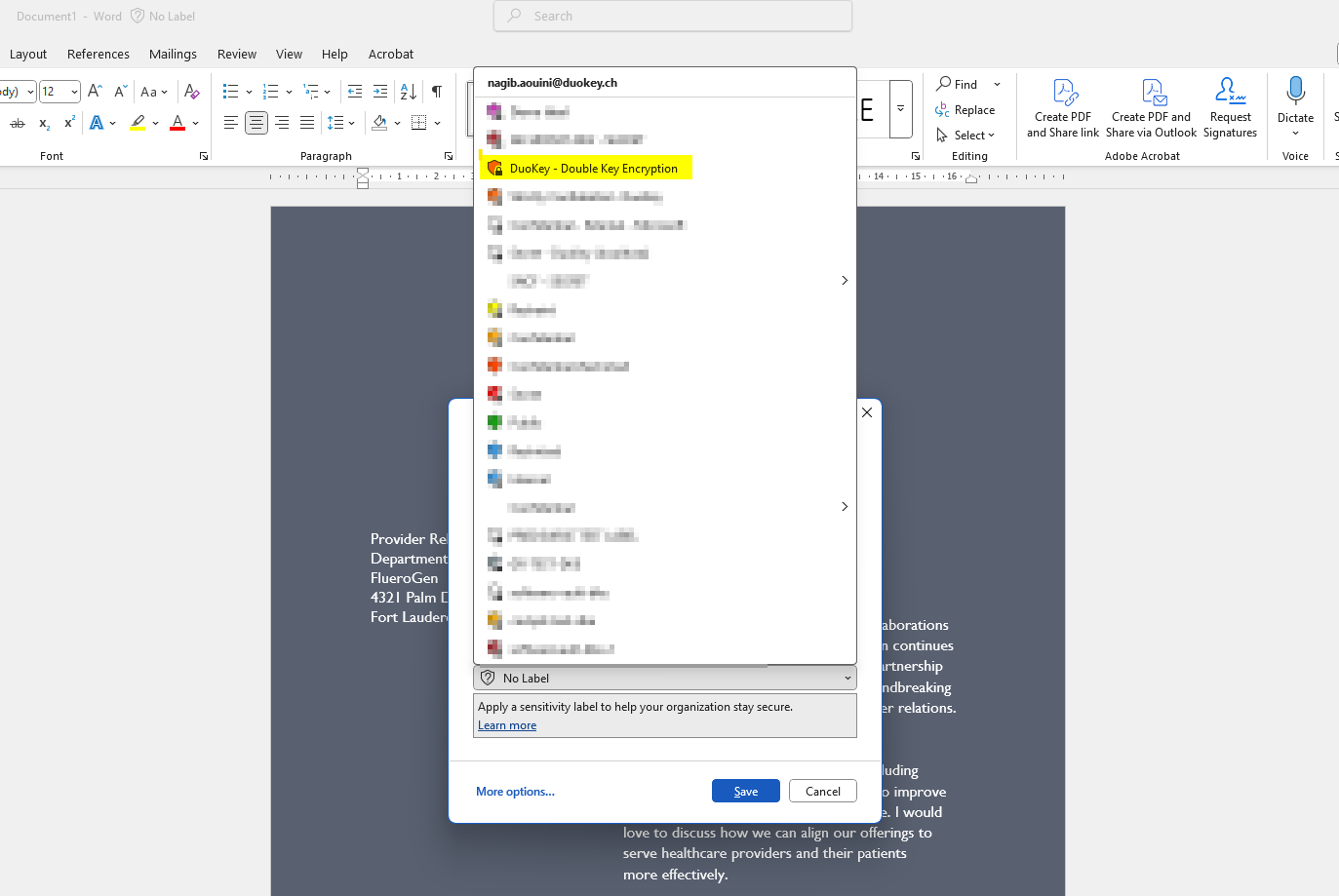
The sensitivity labels you created will appear in the Sensitivity menu in Word:
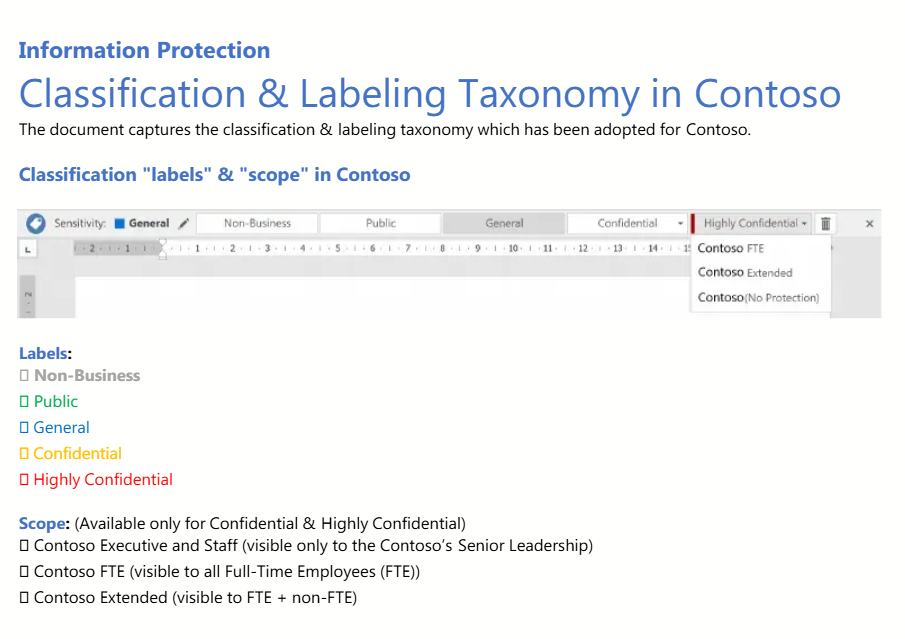
You'll see your custom DKE labels listed alongside any other sensitivity labels in your organization. DKE-enabled labels may have distinctive icons or indicators showing they use Double Key Encryption.
Apply a DKE Label
Open Document
Open or create a document in Microsoft Word
Access Sensitivity Menu
Click on the Sensitivity button in the ribbon (usually in the Home tab)
Select DKE Label
Select your DKE-enabled sensitivity label from the dropdown menu
Label Applied
The label will be applied immediately to the document
What happens when you apply a DKE label
Encrypted
Document is encrypted using Double Key Encryption
Labeled
Visual indicator shows the applied label
Marked
Header/footer may display sensitivity classification
Protected
Only authorized users can open the document
Once a DKE label is applied, the document is immediately encrypted. Make sure you're satisfied with your content before applying the label, as some editing features may be restricted depending on your access permissions.
Now, only those who are also part of the Sensitivity Label's assigned permissions (see Create Sensitivity Label → Access Control) — and, if one is bound to the DKE service, its access control policy — can open and decrypt the file. Users outside the authorized group will not be able to access the content.
Microsoft Outlook
In Outlook, only the people who are part of the same policy will be able to open your emails and attachments in them.
Sensitivity labels are currently supported only on Windows OS, per Microsoft.
Tracing Activity
Every activity involving Sensitivity labels is tracked in the Activity logs in the DuoKey Cockpit.
Activity Log Example
App s365demo used key to perform crypto operation, key used: key_001_demo_CONFIDENTIAL-DOCUMENT (RSA 2048), operation: Decrypt
- 2/24/2025 12:13:22 PM using vault: SBX01_demo_20211018 PRIMUS
| Log Field | Description |
|---|---|
| App | The DKE application that processed the request |
| Key Used | Name and type of the encryption key |
| Operation | Encrypt or Decrypt |
| Timestamp | Date and time of the operation |
| Vault | The vault where the key is stored |