DKE Troubleshooting Guide
DKE Troubleshooting Guide
Comprehensive guide to diagnose and resolve common DKE implementation issues
Label Publication Issues
Error: "Azure Information Protection cannot apply this label because..."
Symptoms
- Newly created DKE label doesn't appear in Office applications
- Error message when trying to apply the label
Root Causes
- Label is not yet published (can take up to 24 hours)
- Label status is not set to "Published"
Use PowerShell to manually publish the label:
# Install and import the AIPService module
Install-Module AIPService
Import-Module AIPService

# Connect to AIP Service
Connect-AIPService

# Get all templates
Get-AipServiceTemplate | Format-List

# Check the status of a specific template
Get-AipServiceTemplateProperty -TemplateId <template-id> -Status

# Force publish the template
Set-AipServiceTemplateProperty -TemplateId <template-id> -Status Published
Replace <template-id> with your actual template GUID from the Get-AipServiceTemplate output.
Labels Not Showing in Office Apps
Symptoms
- DKE labels don't appear in Word, Excel, or Outlook
- Other sensitivity labels work fine
Delete the local cache folders to force a refresh:
- Close all Office applications
- Navigate to:
C:\Users\{username}\AppData\Local\Microsoft - Delete the following folders:
MSIPCDRM
- Restart Office applications

Authentication Issues
Login Prompt Appears Every Time
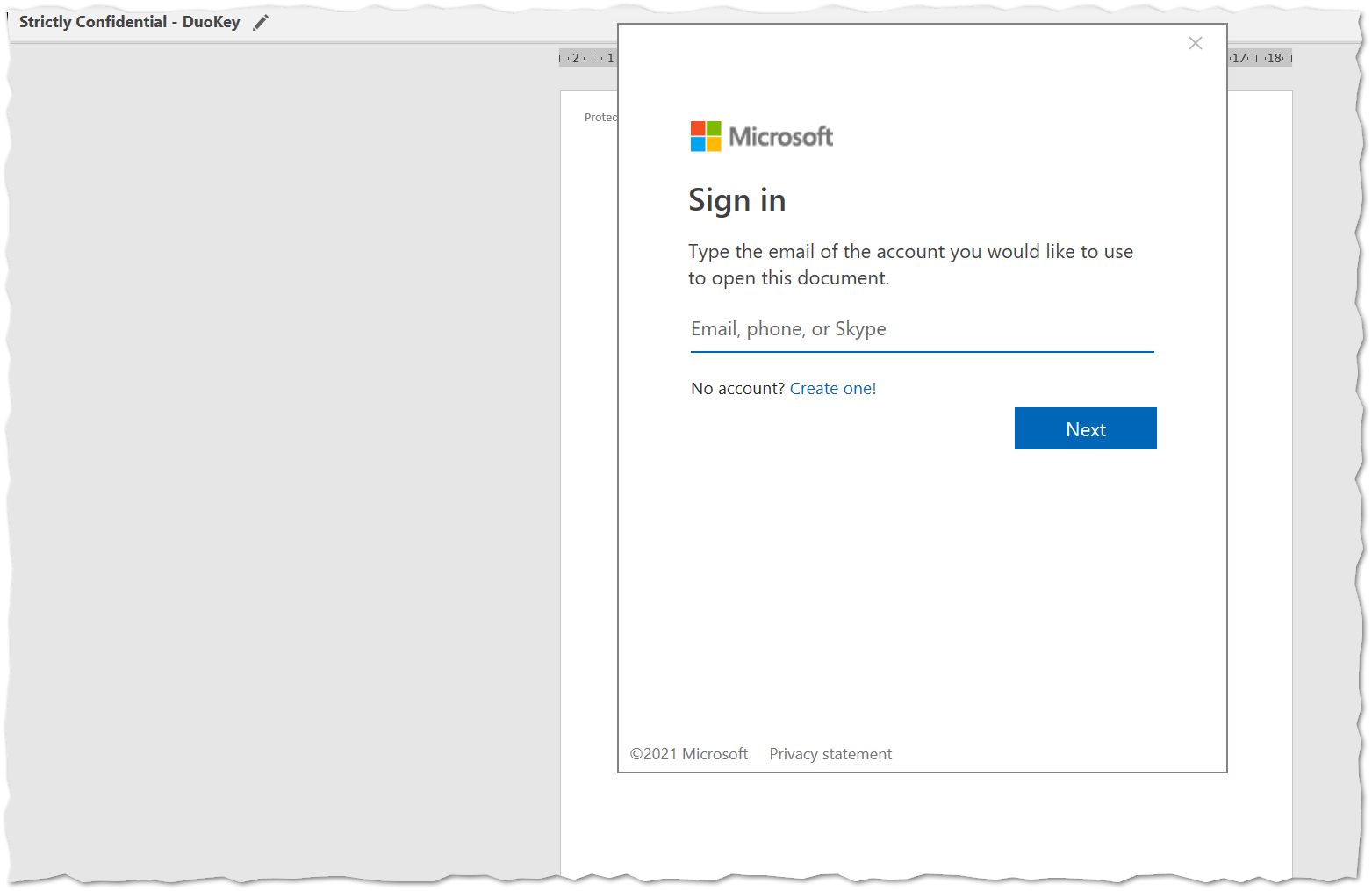
Symptoms
- Prompted to sign in each time applying a DKE label
- Credentials not being cached
Check Office Sign-in Status
- Ensure you're signed into Office with your organizational account
- File → Account → verify signed-in user
Verify Consent
- Ensure admin consent was granted for the DKE app
- Check Azure AD Enterprise Applications
Clear Credential Cache
# Clear Windows Credential Manager
cmdkey /list
# Delete any cached credentials related to duokey.cloud
Check Registry Settings
If applicable, check our Registry Entry page
Error: "You are not signed in to Office"
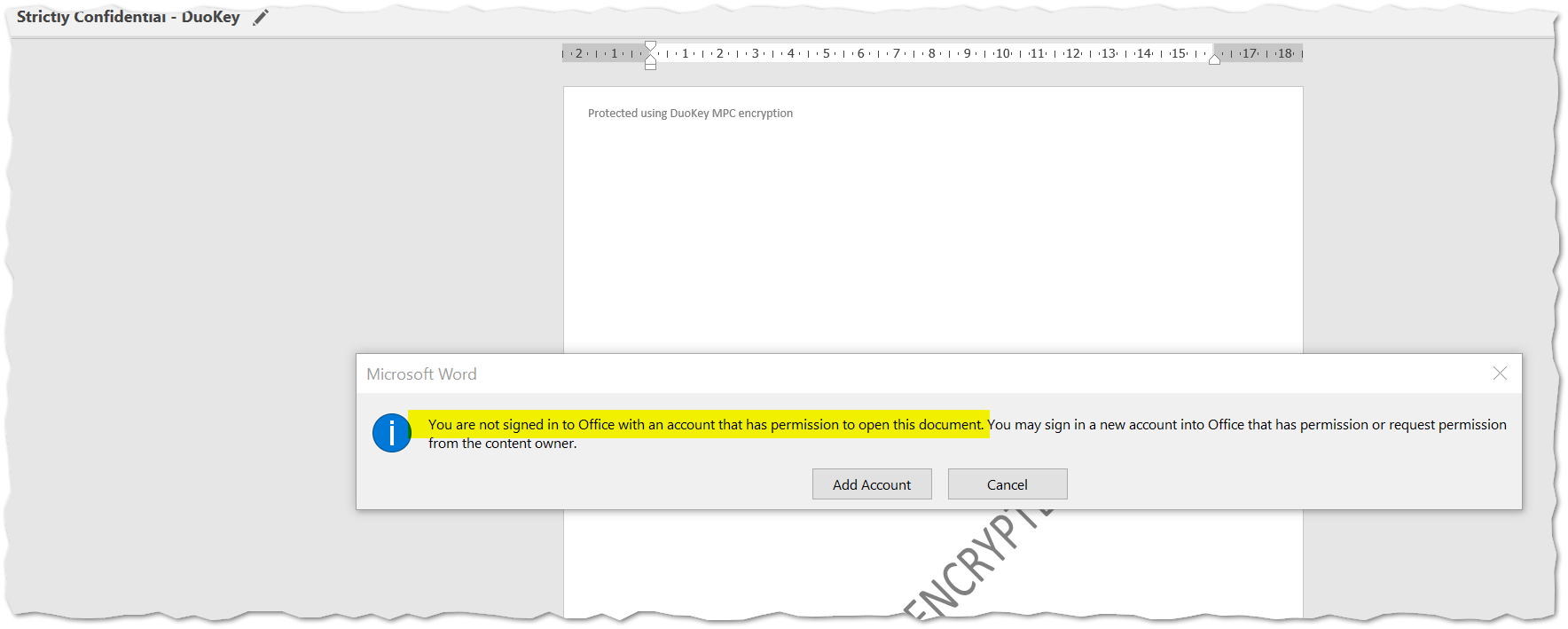
Sign in to Office
- File → Account → Sign In
- Use your organizational Microsoft 365 account
Verify License
- Ensure you have appropriate Microsoft 365 licenses
- Check: File → Account → Product Information
Reset Office Activation
# For Office 365
cd C:\Program Files\Microsoft Office\Office16
cscript ospp.vbs /dstatus
Encryption and Save Errors
Error: "Word cannot complete the save due to a file permission error"
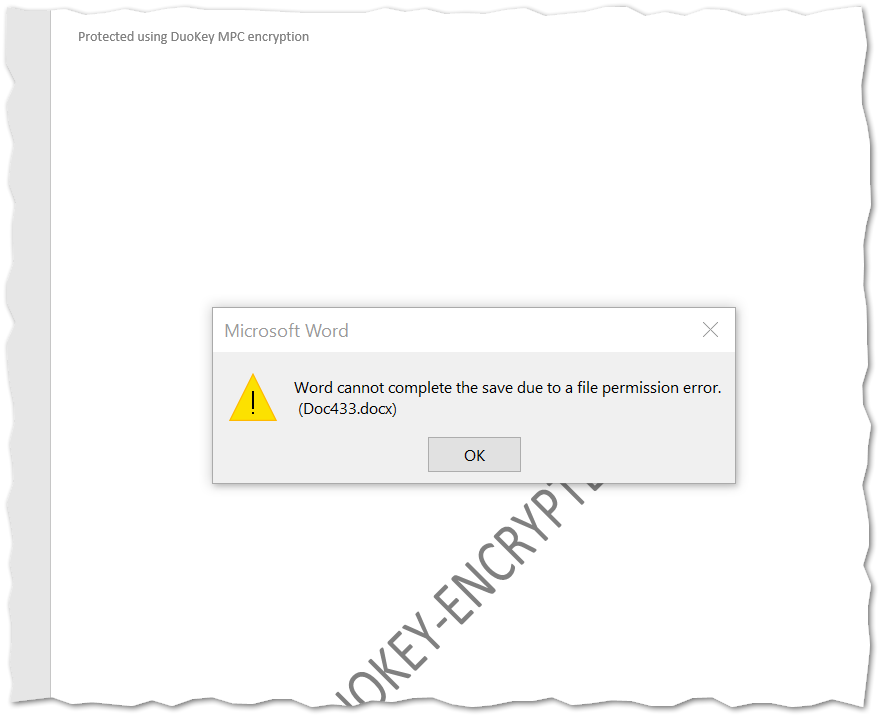
Symptoms
- Can't save document after applying DKE label
- Permission error when encrypting
Root Causes
- Insufficient permissions in the label's access control
- Network connectivity issues to DKE service
- Key not accessible
Verify Permissions
- Ensure you're in the authorized user group for the label
- Check Microsoft Purview → Label → Access Control settings
Check Network Connectivity
- Verify DKE service URL is accessible:
https://your-dke-service.duokey.cloud - Test with browser or curl
Verify Key Status
- Login to DuoKey Cockpit
- Navigate to Keys
- Ensure key is Active (not Disabled, Blocked, or Compromised)
Error: "Word cannot save or create this file"
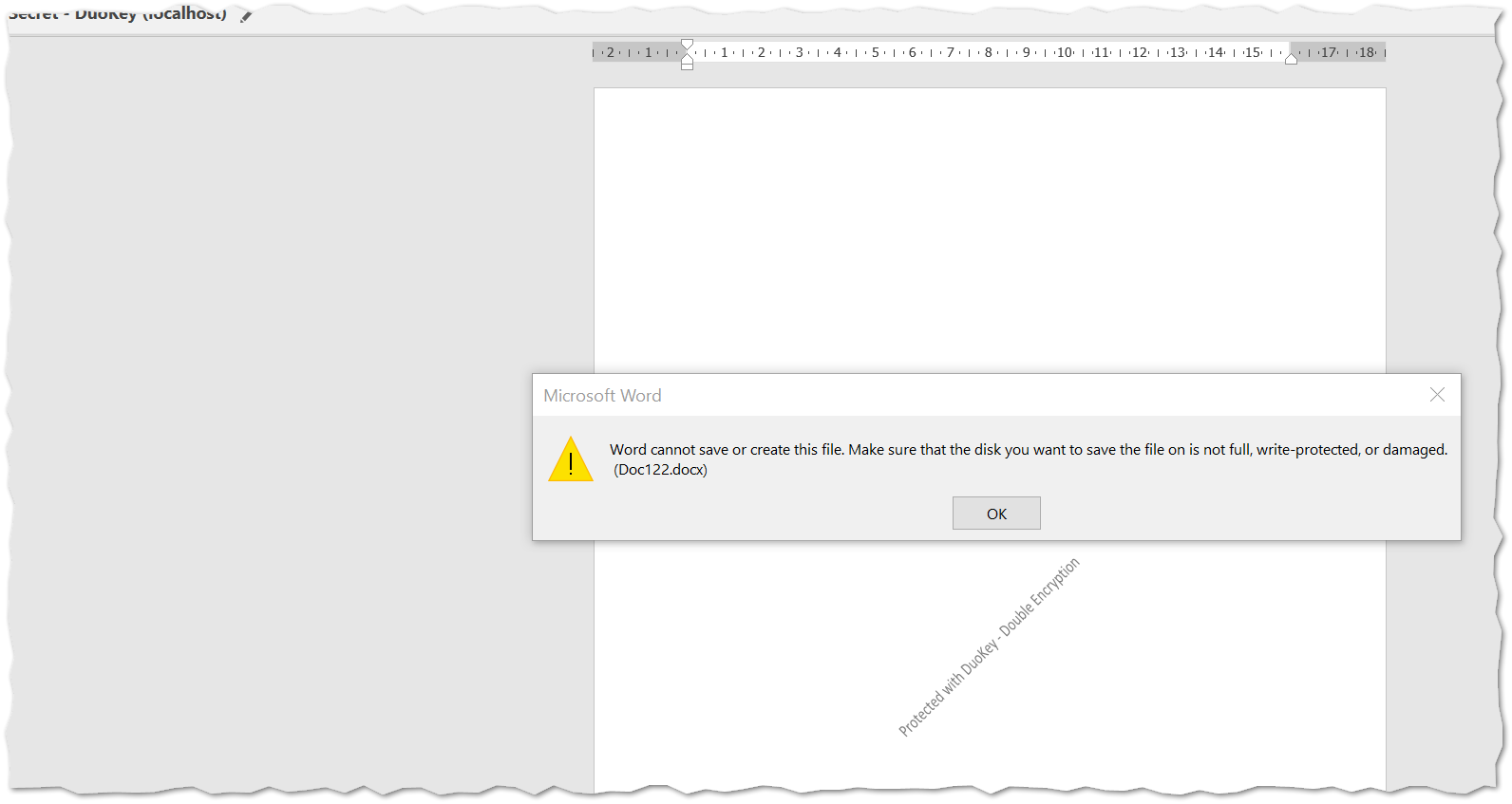
Root Cause: DKE Service Not Reachable
- Service is offline or not deployed
- Firewall blocking access
- Proxy preventing connection
Root Cause: Incorrect Key Configuration
- Key ID mismatch in DKE URL
- Key deleted from vault
- Key status not Active
1. Test Service Accessibility
# Test if DKE service responds
curl https://your-dke-service.duokey.cloud/health
2. Verify Key Endpoint
# Test key endpoint (should return JSON with public key)
curl https://your-dke-service.duokey.cloud/{key-id}
If the key is not found, you'll see an error similar to this:

3. Check DuoKey Cockpit
- Apps → Find your DKE app → Status should be "Online"
- Keys → Find your key → Status should be "Active"
4. Review Activity Logs
- DuoKey Cockpit → Activity Logs
- Look for errors or failed decryption attempts
Configuration Issues
Long "Configuring Information Right Management" Process
Check Network Speed
- Slow connection to DKE service
- Test bandwidth to duokey.cloud
Clear Cache and Retry
- Delete MSIPC and DRM folders (see above)
- Restart Office
Verify Service Health
- Check DKE service status in Cockpit
- Review recent deployments or changes
Cannot Encrypt Same Document with Another DKE Label
Once a document is encrypted with a DKE label, you cannot change to another DKE label. This is by design for security reasons.
Workaround
- Remove the current label (if permitted by policy)
- Apply the new DKE label
- Or create a new copy of the document without encryption
Reset DKE Settings for Label
Microsoft Purview Portal
- Navigate to the label
- Edit label settings
- Modify DKE endpoint URL
- Republish label
Force Client Refresh
- Clear local cache (see above)
- Wait for propagation (up to 24 hours)
- Or use PowerShell to force sync
Self-Hosted Service Built from Microsoft's Sample
This section applies only if you run a key store built from Microsoft's sample code. A DuoKey-operated DKE service is not configured this way.
Symptom
- Label creation or key requests fail against a self-hosted key store
- Token validation errors after moving the service from a pilot host to its real host name
Cause
In the sample's appsettings.json, the JwtAudience value must match the host name exactly. Microsoft calls this out twice in the setup guide — once before publishing the key store and once when configuring tenant and key settings. A host name that changed after the first deployment is the usual culprit.
Fix
- Set
JwtAudienceto the exact host name where the service answers - Confirm the registered redirect URI matches that same host, over
https, on a verified domain - Re-publish the key store and retry
Microsoft's guide sends production deployments to a third-party cloud or an on-premises system, and reserves the Azure App Service route for pilots — see Microsoft Learn: deploy DKE. If you are troubleshooting a pilot that has grown into production use, that is the first thing to revisit.
Technical Configuration
TLS Version Support
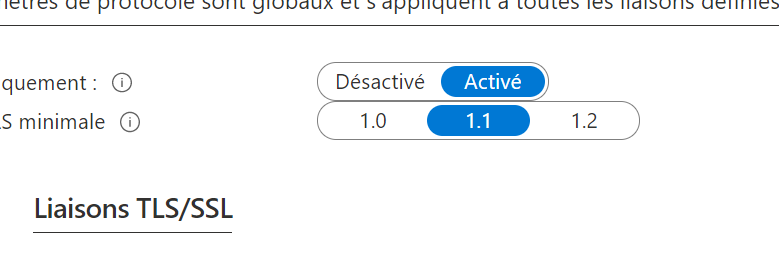
| TLS Version | Supported |
|---|---|
| TLS 1.2 | Yes |
| TLS 1.3 | Yes |
| TLS 1.0 | No |
| TLS 1.1 | No |
| SSL 3.0 | No |
Ensure your network and proxy support TLS 1.2 or higher. Older TLS versions are deprecated for security reasons.
Multiple DKE Versions
Testing and Diagnostics
Test Encryption Request with Postman/Swagger
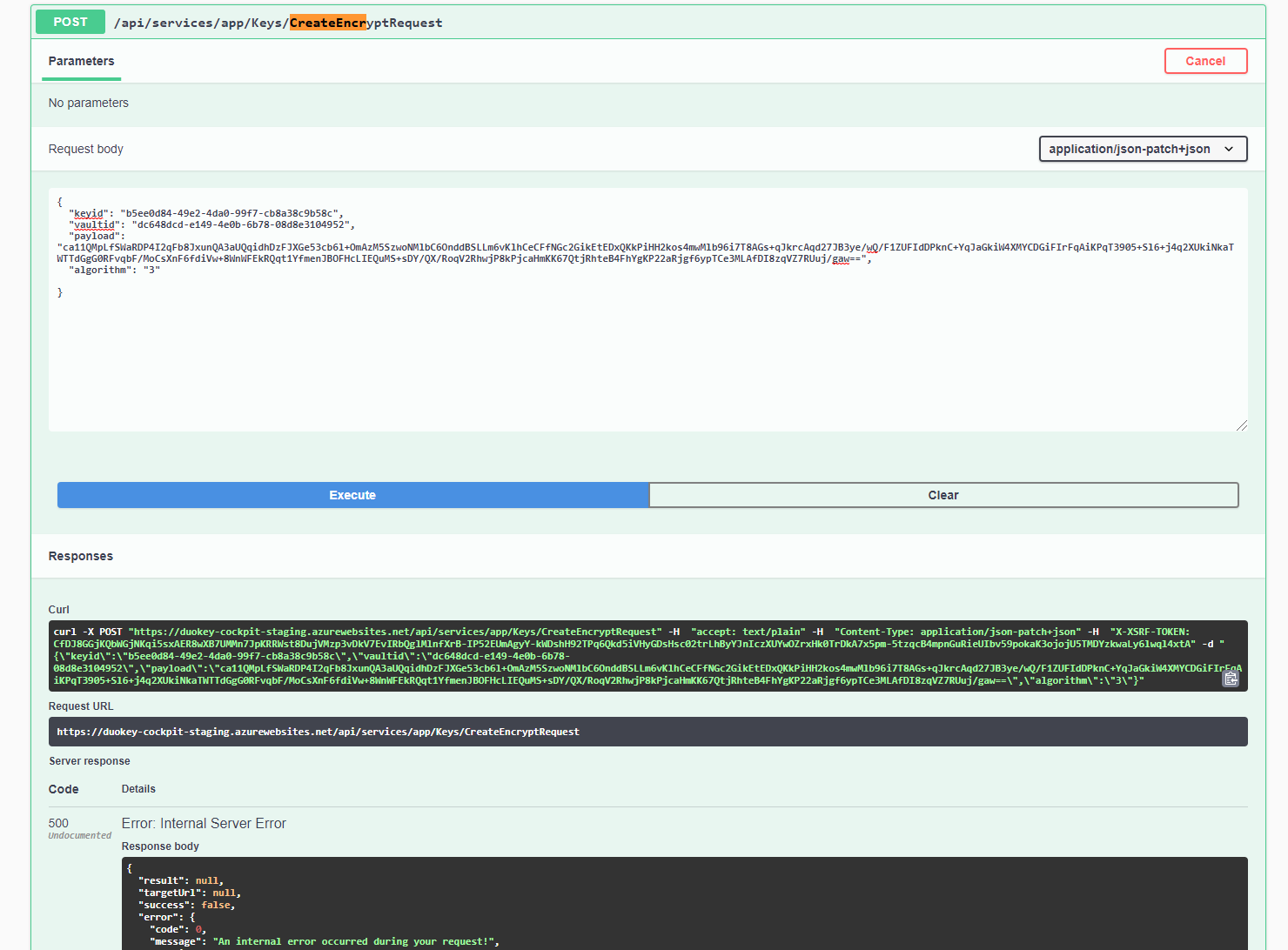
Endpoint: POST https://your-dke-service.duokey.cloud/api/encrypt
Headers
Authorization: Bearer {token}
Content-Type: application/json
Request Body
{
  "keyId": "your-key-id",
  "plaintext": "test data"
}
Expected Response
{
  "ciphertext": "encrypted-data",
  "keyId": "your-key-id"
}
Enable Diagnostic Logging
Network proxy and outbound connectivity
Most "cannot save", "cannot create file" and long "Configuring Information Rights Management" issues are network/proxy problems: the client can't reach the DKE key service or the Microsoft Entra sign-in endpoint. The full endpoint list is on the URL Whitelist page.
Confirm reachability over WinHTTP (not the browser proxy)
Office desktop apps use WinHTTP, not the browser's WinINET proxy. A browser reaching the DKE URL is not sufficient. Check and set the system proxy:
netsh winhttp show proxy
netsh winhttp import proxy source=ie   # or: netsh winhttp set proxy <proxy:port>
Allow both the DKE and the Microsoft endpoints
Outbound 443 to your DKE service, plus login.microsoftonline.com (Entra
sign-in) and the Azure RMS / Purview endpoints (*.aadrm.com,
*.protection.outlook.com). Transparent and forward proxies — with or without
authentication — are supported.
Disable SSL inspection for these hosts
A TLS-intercepting (SSL-inspecting) proxy re-signs the certificate and breaks the DKE handshake and certificate validation. Add the DKE, Entra and RMS hosts to the SSL-inspection bypass list.
Check the optional client-certificate behaviour
The DKE TLS handshake can include an optional client-certificate request.
MIP-SDK Office builds handle it; older MSIPC builds fail. For MSIPC clients,
terminate DKE TLS on a proxy/load balancer in front of the service. Never
require a mandatory client certificate. From build 2402 the apps send
WINHTTP_NO_CLIENT_CERT_CONTEXT (no client certificate).
Symptom mapping: if a browser can open the DKE key URL but Office fails, the cause is almost always a WinHTTP-proxy, SSL-inspection, or optional-client-certificate issue — not a DKE service outage.
Common Error Messages
| Error Message | Likely Cause | Solution |
|---|---|---|
| "Cannot apply this label because..." | Label not published | Force publish with PowerShell |
| "Not signed in to Office" | Authentication issue | Sign in with organizational account |
| "File permission error" | Access control issue | Verify user is in authorized group |
| "Cannot save or create file" | Service unreachable | Check DKE service status and network |
| Login prompt every time | Credentials not cached | Verify admin consent granted |
Advanced Troubleshooting
Registry Issues
Modifying the registry incorrectly can cause serious problems. Back up the registry before making changes.
Users with older versions may need to update Windows Registry. See detailed steps at: Registry Entry page
Service Not Responding
Check Service Status
- DuoKey Cockpit → Apps → Status
- Should show "Online" with green indicator
Review Logs
- DuoKey Cockpit → Activity Logs
- Look for recent errors or warnings
Redeploy if Necessary
- Apps → Actions → Stop
- Wait 1 minute
- Actions → Deploy
Contact Support
- If issue persists after redeploy
- Provide activity logs and error messages
Key Validation Issues
| Property | Required Value |
|---|---|
| Status | Active |
| Type | RSA 2048 |
| Operations | Decrypt enabled |
| Audit logs | Enabled |
Before Contacting Support
Prerequisites
- Screenshots of error messages
- DKE service URL
- Label configuration details
- Activity logs from DuoKey Cockpit
- Office version (File → Account → About)
- Steps to reproduce the issue