Zero Trust Access Control for Microsoft 365
Zero Trust Access Control
Industry-first conditional access policies for encryption key operations — only available with DuoKey
Why Zero Trust for Encryption Keys?
Microsoft 365 employs robust encryption to protect data, but it lacks granular controls over who can access the encryption keys themselves. When an authorized user has access to keys, that access is generally binary — they either have it or they don't, regardless of other risk factors like location, device security, or time of access.
DuoKey solves this gap by applying zero-trust principles specifically to encryption key management. Every key access request is evaluated against multiple conditions before being granted — ensuring that even authorized users must meet additional security criteria.
DuoKey is the only DKE provider that offers Zero Trust Access Control for encryption keys. No other vendor — not Thales, Entrust, Fortanix, or Utimaco — provides this level of granular conditional access for Microsoft 365 Double Key Encryption.
Architecture
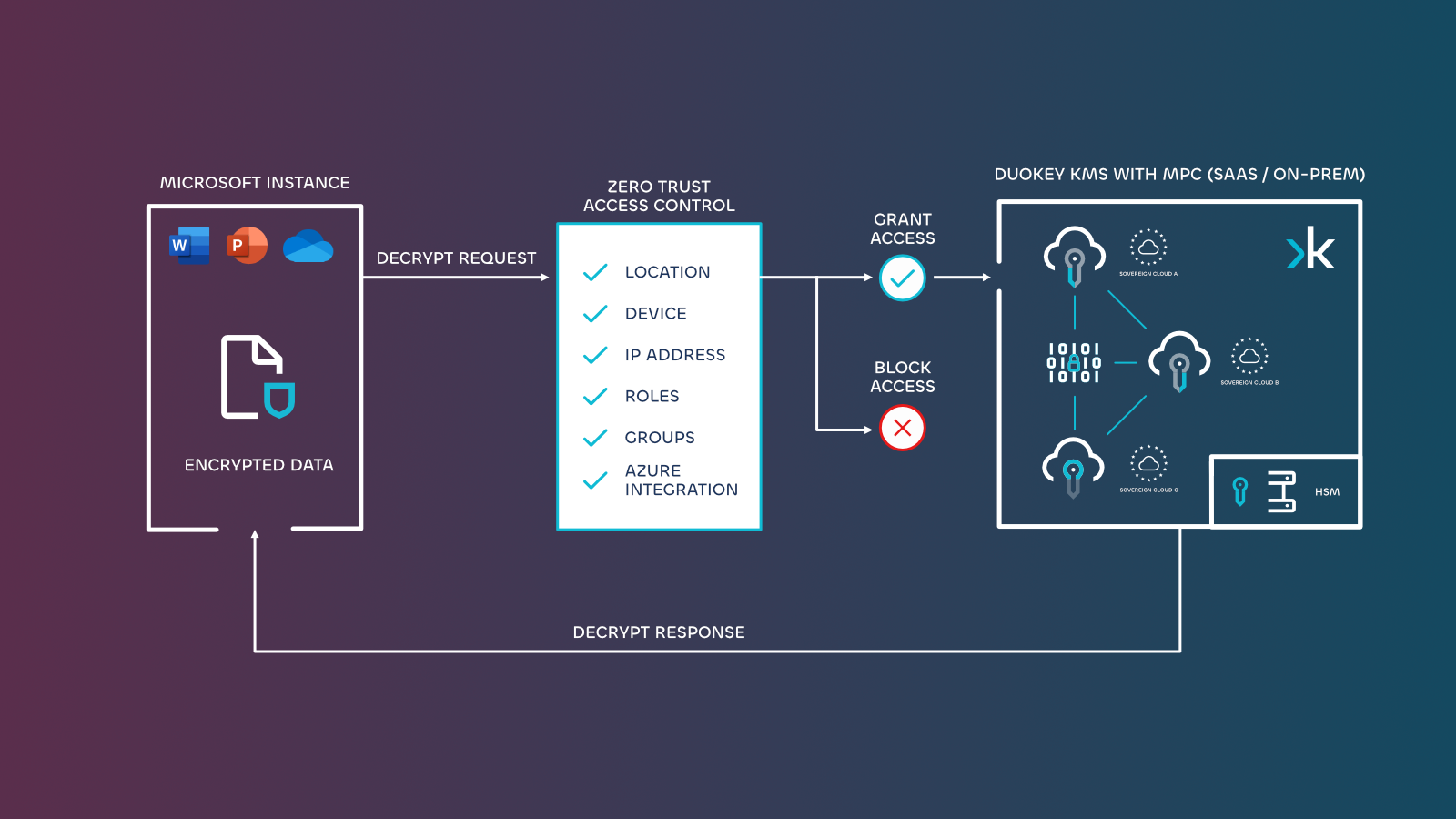
DuoKey's Zero Trust Access Control sits between the user's key access request and the DKE key service. Every request is evaluated against your configured policies before the key operation is authorized.
Verify Explicitly
Every key access request is authenticated and authorized based on all available data points: user identity, location, device, and group membership
Least Privilege Access
Limit key access with just-in-time and just-enough-access policies. Apply granular include, require, and exclude rules
Assume Breach
Minimize blast radius with segmented access, end-to-end encryption verification, and complete audit trail of all key operations
Access Control Policy Dimensions
DuoKey evaluates key access requests across 5 independent dimensions. Each dimension can include, require, or exclude specific conditions.
| Dimension | Controls | Example Use Case |
|---|---|---|
| User (Email) | Allow/block specific email addresses or domains | Only allow C-suite executives to decrypt board documents |
| Device (IP) | Include/require/exclude IP addresses and ranges | Restrict key access to corporate network IPs only |
| Location (Country) | Include/exclude countries or regions | Ensure keys are only accessible from Switzerland and France |
| External Groups (IDP) | Filter by Azure AD / Okta groups | Only allow members of "Project-Confidential" AD group |
| Time (Schedule) | Restrict by day of week and time-of-day range | Only allow decryption during business hours, Monday to Friday |
Getting Started
Step 1: Access the Access Control Policy Module
Navigate to Administration > Access control policy in the DuoKey Cockpit sidebar.
Step 2: View and Manage Policies
The Access Control Policy dashboard shows all existing policies with their associated organization units and external IDs.
From the Actions dropdown on any policy, you can:
| Action | Description |
|---|---|
| View | View the full policy configuration in read-only mode |
| Edit | Modify the policy rules and conditions |
| Delete | Remove the policy permanently |
| History | View the complete audit trail of all changes |
Step 3: Create a New Access Policy
Click + Create New Access Policy to define a new conditional access policy.
Name Your Policy
Select Action
Assign Organization Units
Configure Rules
Save
Policy Actions
Each policy can enforce one of three actions:
| Action | Behavior |
|---|---|
| Allow | Grant key access when all conditions are met |
| Block | Deny key access when conditions match (override allow rules) |
| Bypass | Skip the access control check entirely for matched conditions |
Configuring Access Rules
User-Based Access (Email Allowlist)
Control key access based on user email addresses. Add specific users or entire domains to the allowlist.
Select the User tab
Choose filter type
Add users
Add or remove
Device-Based Access (IP Ranges)
Restrict key access to specific IP addresses or network ranges. Supports Include, Require, and Exclude rule types.
| Rule Type | Description | Example |
|---|---|---|
| Include | Allow access from these IPs (at least one must match) | 102.163.24.161 — corporate office |
| Require | Access MUST come from these IP ranges | Corporate VPN range 10.0.0.0/8 |
| Exclude | Block access from these IPs (overrides include) | Known risky IP ranges |
Select the Device tab
Add Include rules
Add Require rules (optional)
Add Exclude rules (optional)
Location-Based Access (Country)
Restrict key access to specific geographic locations. Enforce data sovereignty by limiting key operations to approved countries.
Select the Locations tab
Add Include countries
Add Exclude countries (optional)
Time-Based Access (Schedule)
Restrict key access to a day-of-week and time-of-day window — for example, business hours only.
Select the Time tab
Add a schedule rule
External Groups (Azure AD / Okta Groups)
Leverage your existing identity provider groups to control key access. Sync with Azure AD or Okta groups for seamless role-based access.
Select the External Groups tab
Select Identity Provider
Select Groups
Audit & History
Every policy change is tracked with a complete audit trail showing the action, user, and timestamp.
| Field | Description |
|---|---|
| Action | Type of change (Created, Updated, Deleted) |
| User name | The administrator who made the change |
| Time | Exact timestamp of the modification |
Competitive Advantage
DuoKey Zero Trust Access Control is an industry-first capability. No other DKE vendor provides dynamic, UI-driven conditional access policies for encryption keys.
| Capability | DuoKey | Thales | Entrust | Fortanix | Utimaco |
|---|---|---|---|---|---|
| Zero Trust Key Access | Dynamic UI | ||||
| User Email Allowlist | Dynamic UI | Static (appsettings.json) | Static (appsettings.json) | Static (appsettings.json) | |
| IP-Based Key Restriction | Dynamic UI | ||||
| Country/Geo Restriction | Dynamic UI | ||||
| IDP Group Integration | Dynamic UI | ||||
| Policy Audit Trail | |||||
| MPC-Based Key Security | |||||
| Allow/Block/Bypass Rules | |||||
| Real-time Policy Changes | No restart needed | Requires redeployment | Requires redeployment | Requires redeployment |
Thales, Entrust and Fortanix offer only a static email-based authorization hardcoded in the appsettings.json configuration file. Any change requires manual file editing and redeployment of the DKE service. DuoKey is the only solution with a dynamic, real-time UI — policies take effect immediately without any service restart or redeployment.
Why Competitors Cannot Match This
Traditional DKE providers (Thales, Entrust, Fortanix) rely on a static appsettings.json file to define email-based authorization. This approach has critical limitations:
- No UI — administrators must manually edit JSON configuration files
- No IP, location, or group-based rules — only basic email allowlisting
- Requires redeployment — every change means restarting the DKE service
- No audit trail — no tracking of who changed what and when
- No Include/Exclude logic — simple binary allow or deny, no layered rules
DuoKey's architecture, powered by secure Multi-Party Computation (MPC), enables:
Distributed Key Security
Keys are split across multiple independent MPC servers. No single entity ever possesses the complete key.
Conditional Key Access
Every key request is evaluated against multi-dimensional policies before authorization — impossible with traditional HSM-only architectures.
Geo-Sovereign Control
Restrict key operations to specific countries and regions, ensuring compliance with GDPR, DORA, and local data protection laws.
Full Audit Compliance
Every key access and policy change is logged with tamper-proof audit trails for regulatory reporting.