PDF Double Key Encryption with Adobe Acrobat
PDF Double Key Encryption
Protect PDF documents with DuoKey Double Key Encryption using Adobe Acrobat and Microsoft Purview sensitivity labels
Overview
Adobe Acrobat supports Microsoft Purview Information Protection (MPIP) with native Double Key Encryption (DKE) integration. This allows your users to apply DKE sensitivity labels directly from Adobe Acrobat — protecting PDF documents with the same level of encryption as Word, Excel, and PowerPoint files.
Native PDF Protection
Apply DKE labels directly from Adobe Acrobat's Protect PDF menu — no plugins required
Double Key Encryption
PDF content is encrypted with two keys — one from Microsoft, one from DuoKey. Microsoft never has access to the full key.
Zero Trust Ready
Combined with DuoKey's Zero Trust Access Control, control who can decrypt PDFs by user, IP, location, and group
Prerequisites
- Adobe Acrobat Pro, Standard, or Reader — version 23.003.20201 or later (June 2023+)
- DuoKey DKE Web Service configured and operational
- Microsoft Purview sensitivity labels with DKE configured
- Windows 10/11 or macOS
- Microsoft 365 E5 or equivalent license with Purview Information Protection
Part 1: Administrator Setup
Step 1: Request Adobe Client ID
Before enabling DKE for PDF, you need to register the Adobe Client ID with your DuoKey DKE service.
Contact DuoKey Support
Receive Confirmation
Step 2: Configure Windows Registry
Add the following three DWORD (32-bit) registry values to enable DKE, external browser authentication, and MPIP labeling in Adobe Acrobat.
Registry Path
Computer\HKEY_LOCAL_MACHINE\SOFTWARE\Policies\Adobe\Adobe Acrobat\DC\FeatureLockDown
Computer\HKEY_LOCAL_MACHINE\SOFTWARE\WOW6432Node\Policies\Adobe\Adobe Acrobat\DC\FeatureLockDownRequired Registry Values
| Name | Type | Value | Description |
|---|---|---|---|
| bEnableDKEAdmin | REG_DWORD | 1 | Enables Double Key Encryption support in Acrobat |
| bMIPExternalAuthAdmin | REG_DWORD | 1 | Enables browser-based authentication for MPIP (required for DKE) |
| bMIPLabelling | REG_DWORD | 1 | Enables Microsoft Purview sensitivity labeling in Acrobat |
Step 2b: Configure macOS (Alternative)
For macOS deployments, use the following Terminal commands:
Step 3: Configure Adobe Acrobat Security Settings
In Adobe Acrobat, certain security settings must be adjusted for DKE to function properly.
Open Preferences
Navigate to Security
Disable Protected Mode
Disable Enhanced Security
Restart Acrobat
| Setting | Required Value | Reason |
|---|---|---|
| Enable Protected Mode at startup | Disabled | Protected Mode prevents DKE service communication |
| Enable Enhanced Security | Disabled | Enhanced Security blocks external key service calls |
Optional: Enable Document Message Bar (DMB)
The Document Message Bar shows the applied sensitivity label at the top of protected documents.
Windows Registry
Computer\HKEY_CURRENT_USER\SOFTWARE\Adobe\Adobe Acrobat\DC\MicrosoftAIP
| Name | Type | Value |
|---|---|---|
| bShowDMB | REG_DWORD | 1 |
Optional: Mandatory Labeling
Force users to apply a sensitivity label before saving any PDF document.
| Registry Path | Name | Type | Value |
|---|---|---|---|
| ...\FeatureLockDown | bMIPCheckPolicyOnDocSave | REG_DWORD | 1 |
Part 2: Applying DKE Labels to PDF Documents
Once the administrator setup is complete, end users can apply DKE sensitivity labels to any PDF document.
Step 1: Open the PDF and Access Protection
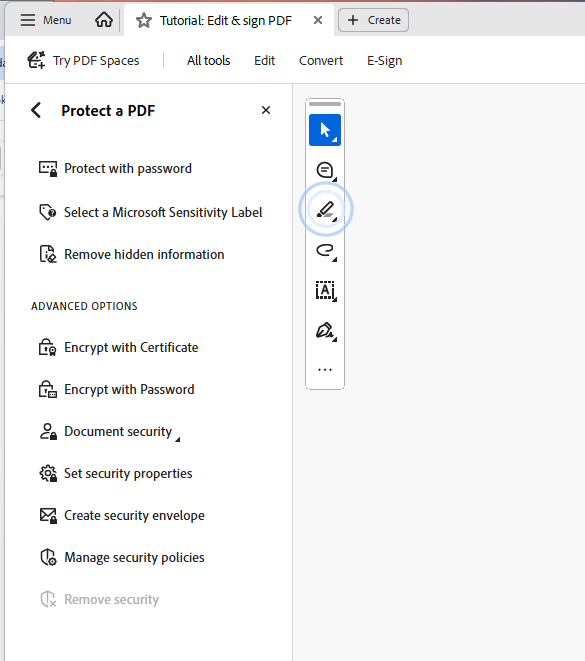
Open a PDF document in Adobe Acrobat, then navigate to the Protect a PDF panel.
Go to All tools > Protect a PDF > Select a Microsoft Sensitivity Label.
Step 2: Select a Microsoft Sensitivity Label
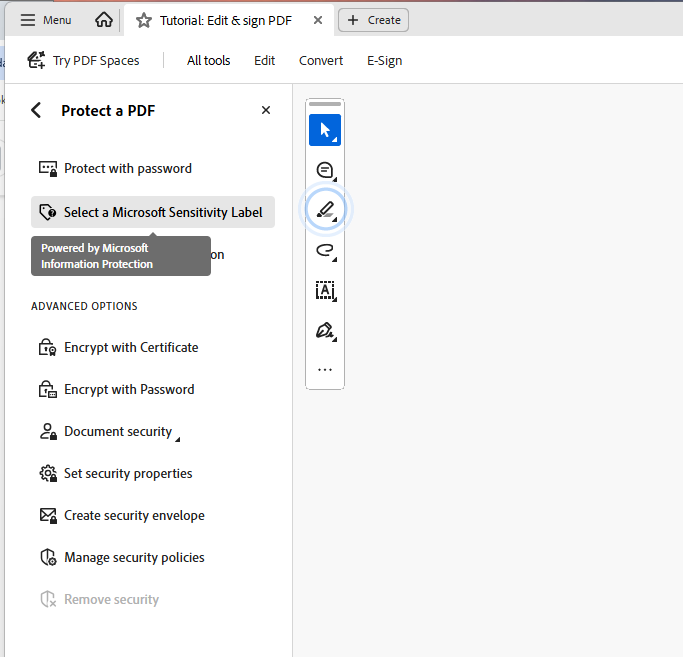
Click Select a Microsoft Sensitivity Label. The tooltip shows "Powered by Microsoft Information Protection".
Step 3: Choose the DKE Label
A dialog box appears with all available sensitivity labels from your Microsoft Purview configuration. Select your DKE label (e.g., "DuoKey - Double Key Encryption").
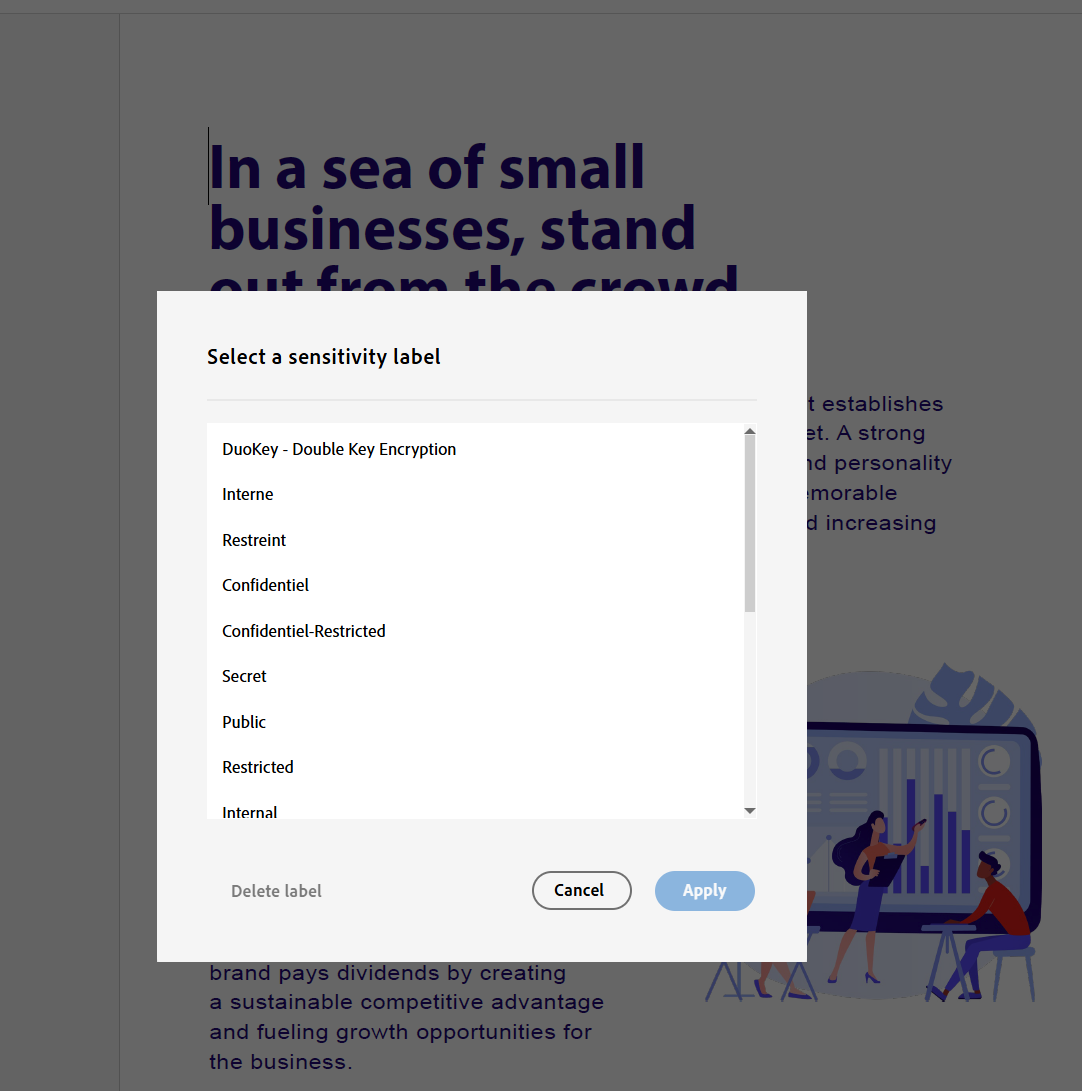
The available labels shown are your organization's Purview sensitivity labels:
- DuoKey - Double Key Encryption — DKE protected (highest protection)
- Interne, Restreint, Confidentiel, Secret — Standard MPIP labels
- Public, Restricted, Internal — Other classification levels
Step 4: Apply the Label
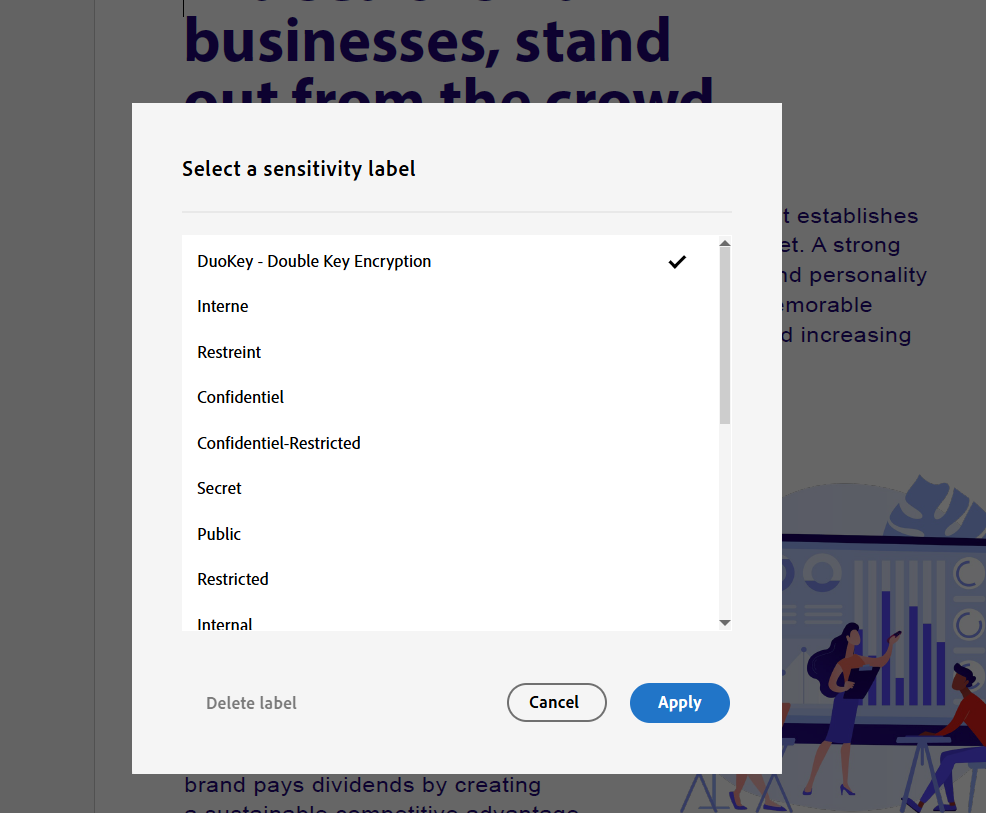
Select the "DuoKey - Double Key Encryption" label (a checkmark appears) and click Apply.
Step 5: PDF is Now DKE-Encrypted
The PDF is now protected with Double Key Encryption. A banner at the top of the document confirms:
"This document is protected by Microsoft Purview Information Protection with label 'DuoKey - Double Key Encryption'"
And a second banner shows:
"This service is provided by DuoKey for Office 365 engine"

How It Works
User Applies Label
Microsoft Encrypts
DuoKey Encrypts
Document Protected
Decryption Request
Zero Trust Check
Microsoft never has access to the full encryption key. The DuoKey key (Key 2) is managed entirely by your organization through DuoKey's MPC-based infrastructure.
Registry Configuration Summary
| Registry Key | Name | Value | Purpose |
|---|---|---|---|
| ...\FeatureLockDown | bMIPLabelling | 1 | Enable MPIP sensitivity labels |
| ...\FeatureLockDown | bEnableDKEAdmin | 1 | Enable Double Key Encryption |
| ...\FeatureLockDown | bMIPExternalAuthAdmin | 1 | Enable browser-based authentication |
| ...\MicrosoftAIP | bShowDMB | 1 | Show document message bar (optional) |
| ...\FeatureLockDown | bMIPCheckPolicyOnDocSave | 1 | Mandatory labeling (optional) |
| ...\MicrosoftAIP | bEnableLogging | 1 | Enable MIP debug logging (troubleshooting) |