ServiceNow Integration
ServiceNow Integration
Post Quantum Scanner is a ServiceNow Store application. It brings the cryptographic inventory, the Quantum Readiness Scores and the compliance results produced by DuoKey Cockpit into your ServiceNow instance, and adds a module to plan and track your post-quantum migration.
The application installed in your ServiceNow instance connects to your DuoKey Cockpit tenant and pulls the data. The Cockpit never writes into your instance for this integration, and no ServiceNow user name or password is stored in the Cockpit. This replaces the earlier model in which scan results were published from the Cockpit to custom ServiceNow tables.
What you get
| Screen | What it shows |
|---|---|
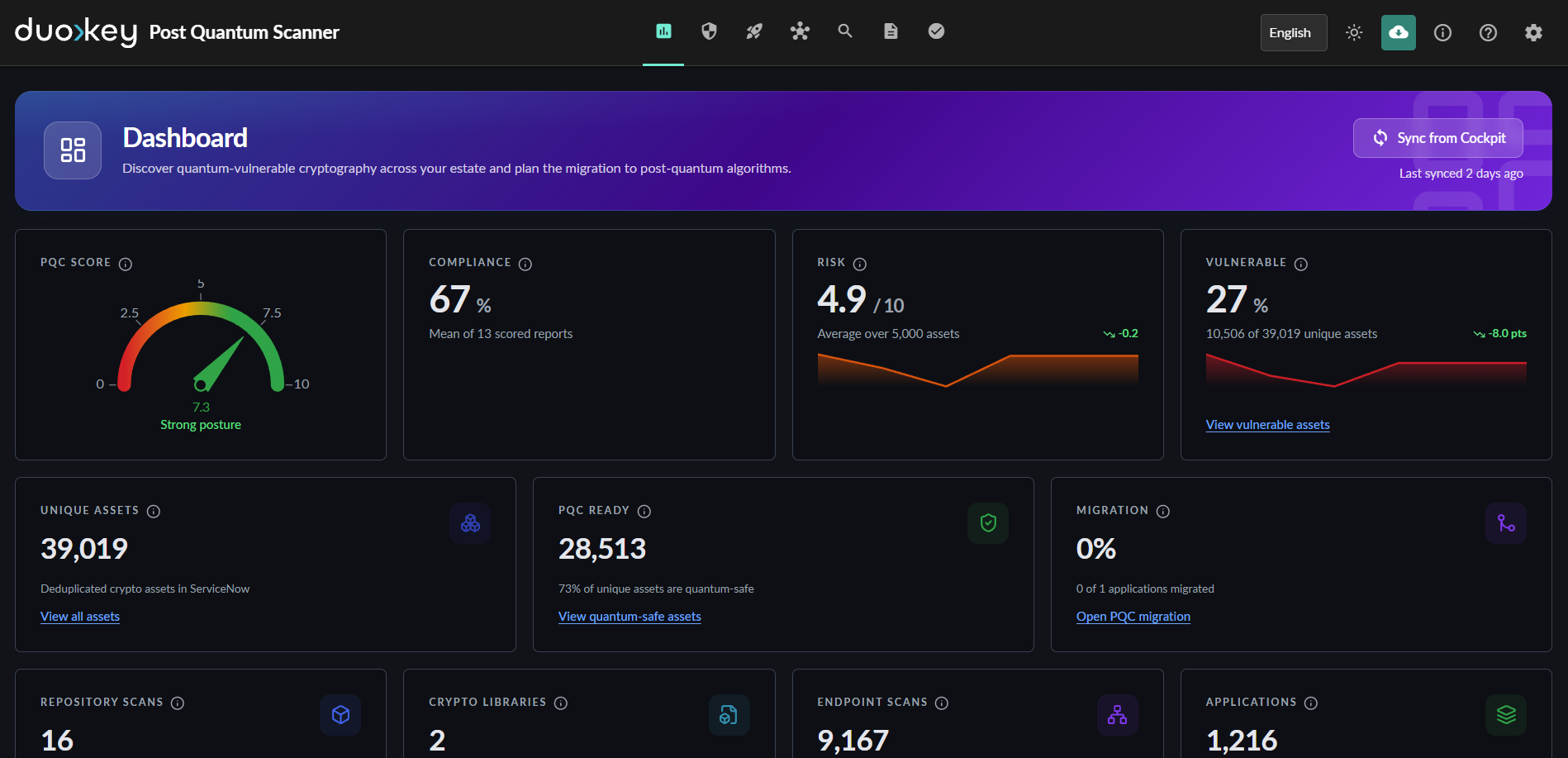
| Dashboard | PQC score, compliance, risk and share of quantum-vulnerable assets, with the counts of scans, assets and applications |
| Crypto Inventory | Certificates, keys and algorithms found by your scans, with the quantum-vulnerable ones flagged |
| CBOM Explorer | A CycloneDX Cryptography Bill of Materials displayed as a dependency graph, with the recommended migration for each algorithm |
| Report | Scans, findings and the Quantum Readiness Score of each scan |
| Compliance | Readiness per framework, with gaps and a remediation roadmap |
| PQC Migration | Application portfolio, business flows and priorities, task board, controls and evidence, framework deadlines, crypto policy and an inventory export aligned to OMB M-23-02 |
How it works
Scan
DuoKey Cockpit and the scanner agent scan your TLS endpoints, source code, file systems and CBOMs. The findings, the scores and the compliance results are kept in your Cockpit tenant.
Connect
A manager of the application connects the ServiceNow instance to the Cockpit tenant. A user of the tenant approves the access once, in a browser window, with OAuth 2.1 and PKCE.
Synchronise
The instance pulls scans, crypto assets, CBOMs and compliance reports over HTTPS, on demand and once a day. The synchronisation runs in the background, in bounded chunks, and resumes where it stopped if it is interrupted.
Plan and track
The application groups the findings per application, using the relationships of your CMDB, and your teams track the migration in ServiceNow.
Prerequisites
Voraussetzungen
- A ServiceNow instance on the Yokohama release
- The right to install an application from the ServiceNow Store
- A DuoKey Cockpit tenant, reachable from the instance over HTTPS
- A Cockpit user who can approve the connection
Setup
Install the application
Install Post Quantum Scanner from the ServiceNow Store. The installation creates the scoped tables, two roles, the scheduled jobs and the application menu. Nothing else has to be loaded.
Assign the roles
x_dksa_pqcsca_0.dksa_pqc_reader: consult the inventory, the scores and the reports, move tasks and register evidence.x_dksa_pqcsca_0.dksa_pqc_manager: manage the connection to the Cockpit, start a synchronisation, and edit the inventory, the policy and the controls.
Open the application
In the navigator, open Post Quantum Scanner, then Post Quantum Scanner.
Connect to the Cockpit
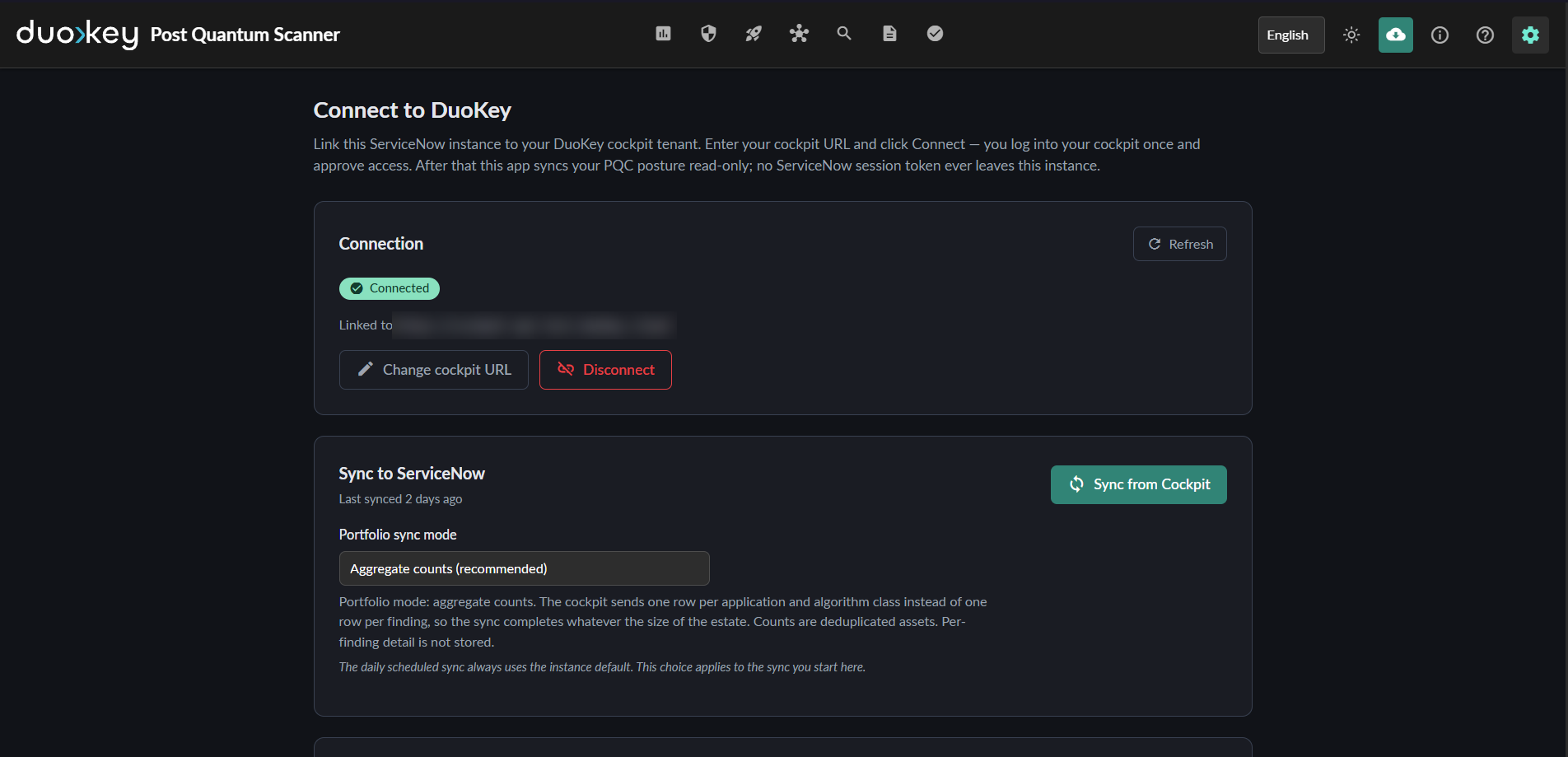
As a manager, open the Connect screen, check the Cockpit URL and select Connect. Sign in to your Cockpit tenant in the window that opens and approve the access. The screen then shows the state Connected.
Synchronise
Select Sync from Cockpit. The progress panel lists each phase with real counts. Afterwards, the daily job keeps the data up to date.
Portfolio sync mode
| Mode | What is pulled | When to use it |
|---|---|---|
| Aggregate counts (default) | One row per application and algorithm class, with deduplicated counts | Any estate. The synchronisation completes whatever the number of findings |
| Detailed | One row per finding | Smaller estates, when asset-level drill-down is needed in ServiceNow |
| Both | Aggregate counts and one row per finding | When both views are needed. This is the longest synchronisation |
Security
| Topic | How it is handled |
|---|---|
| Who decides what the instance can read | The Cockpit. The token issued to the instance is bound to one tenant and is read-only. The Cockpit checks it on every request |
| Transport | HTTPS only. The application refuses a Cockpit address that does not use https, and refuses private, loopback, link-local and cloud metadata addresses |
| Credentials | The OAuth client secret and the tokens are stored in the instance as encrypted system properties, private and restricted to the admin role. No credential is shipped with the application |
| Access in ServiceNow | Every table and every REST route of the application requires one of its two roles. Changes are recorded by field auditing |
| Data location | The data shown by the application is stored in your instance. Your ServiceNow records are not sent to the Cockpit |
You can disconnect at any time from the Connect screen. Disconnecting stops the synchronisation and removes the tokens from the instance.
CMDB context
A scan can carry the configuration item it belongs to. The application uses that context, together with the relationships of your CMDB, to attach findings to applications and to build the migration portfolio.
The context can be given in four ways, in order of precedence.
dke-scanner-agent filesystem \
  --path /etc/ssl/certs \
  --ci-id "a1b2c3d4e5f6a7b8c9d0e1f2a3b4c5d6" \
  --ci-name "Payment Gateway" \
  --environment production \
  --owner "[email protected]"
The configuration item identifier must be the 32-character ServiceNow sys_id of the item. Another format is ignored and the finding stays unattached.
What the application writes outside its own tables
- Certificate configuration items, created through the Identification and Reconciliation Engine and stamped with the discovery source of the application. An item the application did not create is never overwritten.
- One Incident, assigned to the managers of the application, when a synchronisation or migration job fails several times in a row.
Troubleshooting
| Symptom | What to do |
|---|---|
| The lists are empty after installation | No data has been synchronised yet. Connect to the Cockpit and select Sync from Cockpit |
| A user cannot see the data | Assign the role x_dksa_pqcsca_0.dksa_pqc_reader |
| Connect and Sync are hidden or refused | These actions require the role x_dksa_pqcsca_0.dksa_pqc_manager |
| The connection window fails with an access error | If the Cockpit is published behind an access proxy, exclude its OAuth endpoints so the browser can complete the flow |
| A synchronisation is partial or stale | Start a new synchronisation. It resumes from the stored position |
Support and privacy
Support is available through support.duokey.com and at [email protected]. In the application, the menu Post Quantum Scanner carries a Contact Support page and an App Privacy Policy page, which states what the application stores and what is exchanged with the Cockpit.